Capture OBS YouTube Live HLS Output for Debugging
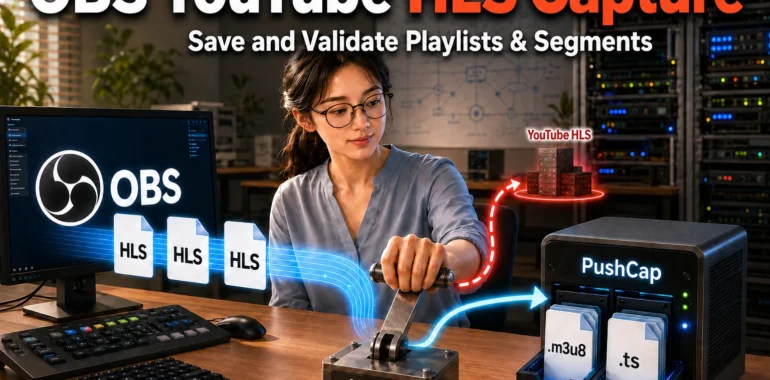
This article shows how to capture and save OBS YouTube Live HLS output for analysis. A Python-based PushCap program receives the stream after the YouTube ingest address is redirected in the hosts file. It saves .m3u8 playlists and .ts media segments in sequence.
Capture a YouTube Live HLS Stream
While developing the HLStoYTB module for connecting Wowza Streaming Engine to YouTube Live through HLS, one of the problems was that I could not directly see whether my module was working correctly.
The Wowza logs and network traffic showed that the module was working and sending data. However, YouTube sometimes did not recognize the stream, so the live broadcast did not start. OBS did not have this problem.
I needed to compare the actual output of HLStoYTB with the output of OBS. I therefore wrote a Python program that saves HLS PUSH streams. I named it PushCap after the song below.
Capture OBS YouTube HLS Output
OBS supports RTMPS and HLS for YouTube Live, but its HLS ingest server address is fixed in the program. The normal settings screen cannot send the HLS stream directly to a PushCap server. The YouTube address must instead be redirected to PushCap during DNS resolution by the operating system.
Edit the hosts File to Capture the Stream
YouTube Live HLS uses a.upload.youtube.com and b.upload.youtube.com as its default addresses. When OBS sends data to one of these domains, the operating system first finds its IP address and then connects OBS to that server.
Most operating systems check the local hosts file before requesting an address from DNS. If the YouTube domain in this file points to the IP address of the PushCap server, the data that OBS sends to YouTube goes to PushCap instead.
The hosts file is a text file without an extension. Windows and Linux use the same filename but store it in different locations.
- Windows
C:\Windows\System32\drivers\etc\hosts- Linux
/etc/hosts
Open the file in a text editor such as Notepad or nano. Set the YouTube upload domain to the IP address of the host running PushCap. The following example shows a Windows hosts file.
# Copyright (c) 1993-2009 Microsoft Corp.
#
# This is a sample HOSTS file used by Microsoft TCP/IP for Windows.
#
# This file contains the mappings of IP addresses to host names. Each
# entry should be kept on an individual line. The IP address should
# be placed in the first column followed by the corresponding host name.
# The IP address and the host name should be separated by at least one
# space.
#
# Additionally, comments (such as these) may be inserted on individual
# lines or following the machine name denoted by a '#' symbol.
#
# For example:
#
#      102.54.94.97     rhino.acme.com          # source server
#       38.25.63.10     x.acme.com              # x client host
127.0.0.1	a.upload.youtube.com
# 127.0.0.1	b.upload.youtube.com
# localhost name resolution is handled within DNS itself.
#	127.0.0.1       localhost
#	::1             localhost
In this example, only the primary upload address, a.upload.youtube.com, points to the PC running PushCap. The loopback address 127.0.0.1 points to the same PC. This means that OBS and PushCap run on the same host.
The backup address starts with #, which marks the line as a comment. It is therefore not redirected. The Linux hosts file can be edited in the same way.
Capture the OBS HLS PUSH Output
After editing the hosts file, start YouTube HLS streaming in OBS. The HLS data sent to the YouTube ingest domain is then delivered to the PushCap server.
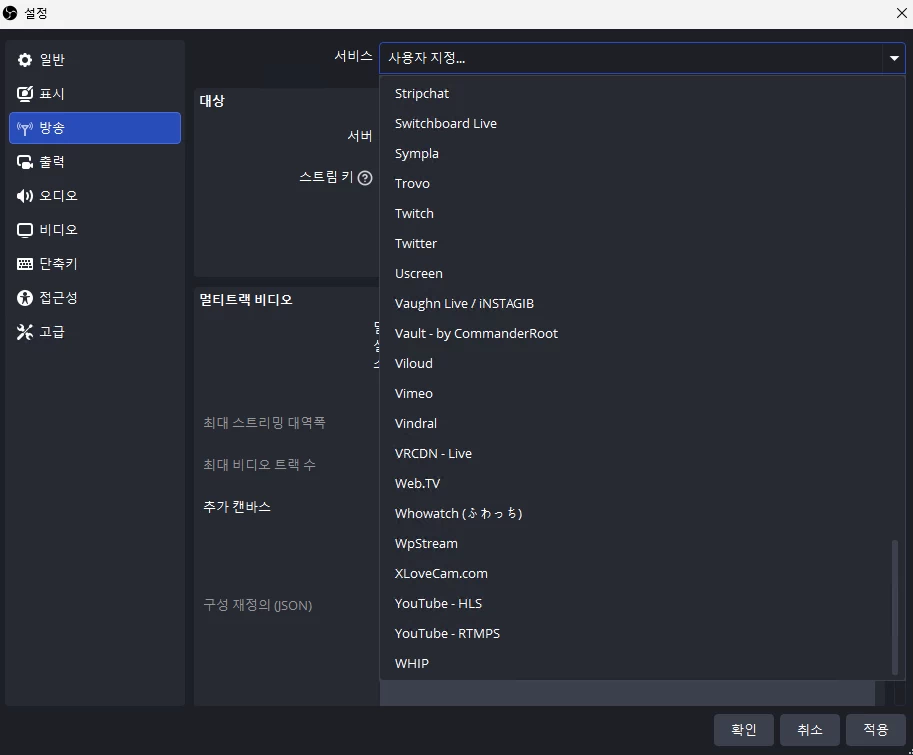
- Select the HLS PUSH service
Open the OBS settings, select Stream, and choose
YouTube-HLSfrom the service list.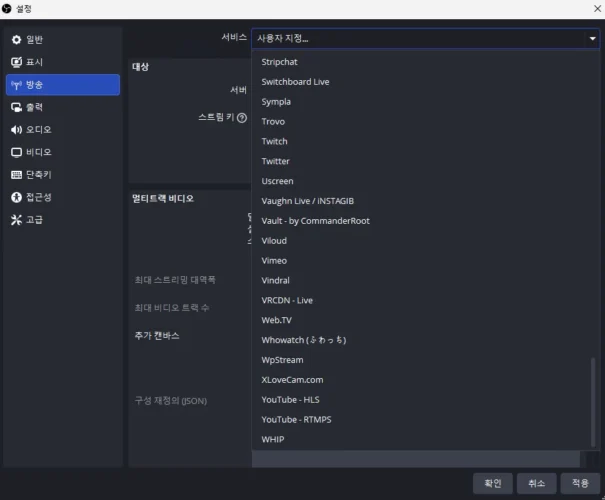
OBS supports HLS and RTMPS for YouTube Live. - Set a stream key
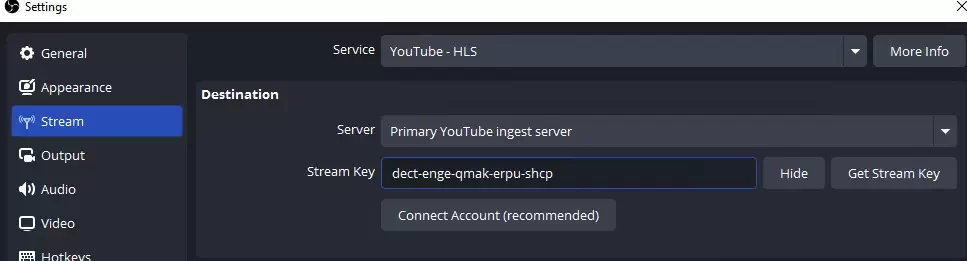
Select Use Stream Key, then enter any test key in the Stream Key field. The key does not need to match the normal YouTube key length. The value shown in the example was created only for this test.
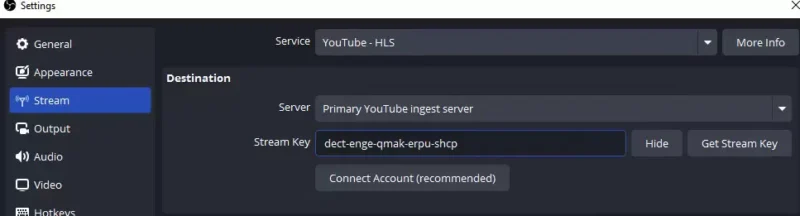
Enter any test stream key. - Start streaming
Select Start Streaming. After the connection succeeds, OBS uploads playlists and media segments to
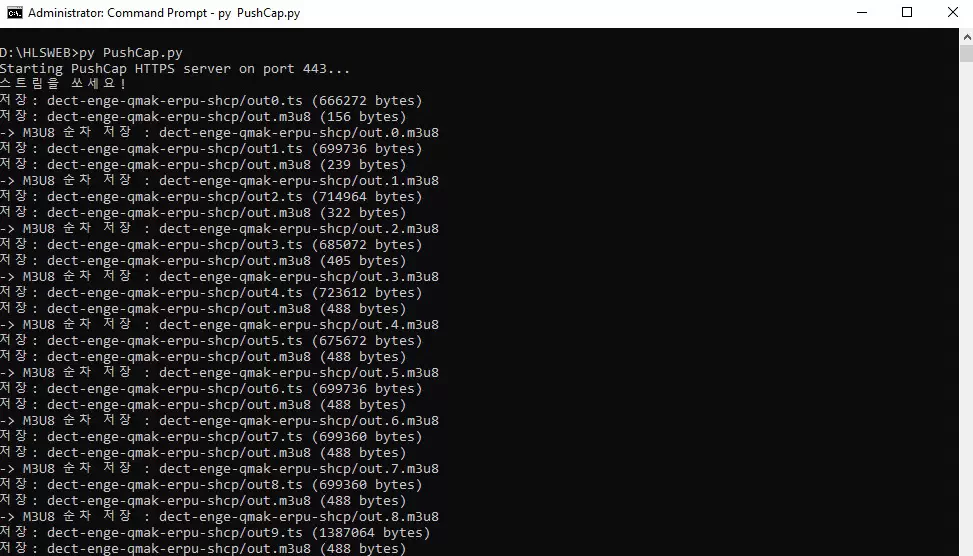
PushCap. The console shows each received filename and file size.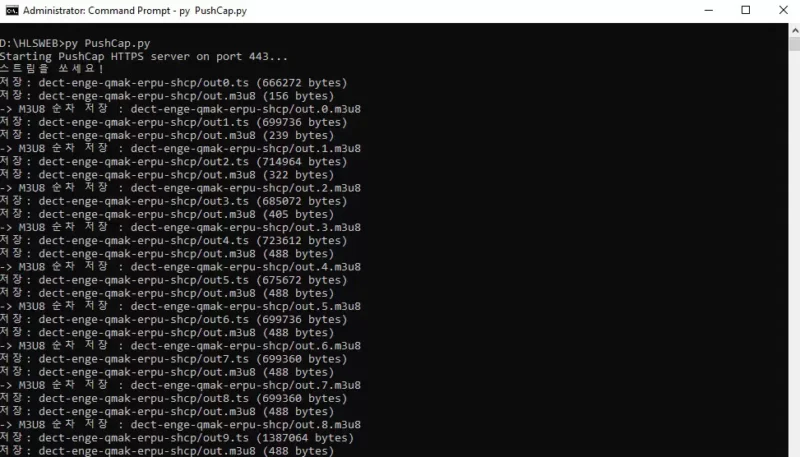
PushCap receiving HLS data.
Check the Captured HLS Data
Stop streaming in OBS, then open the directory that contains PushCap.py. A subdirectory named uploads has been created. Inside it is another directory named after the test stream key. This directory contains the HLS data captured from OBS.
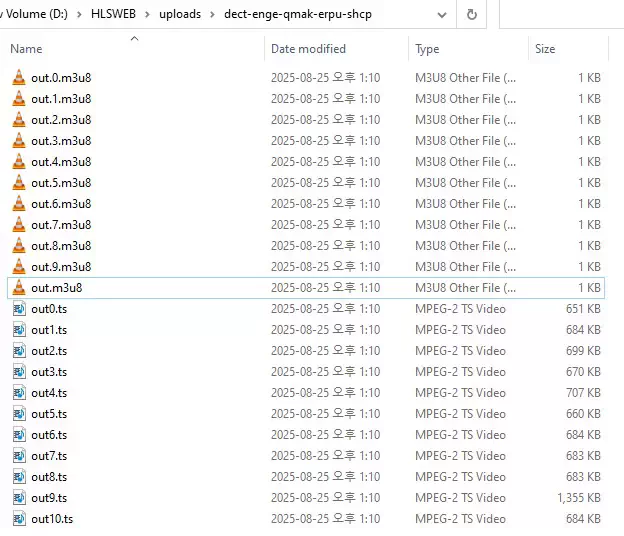
Files with the .ts extension contain the video data uploaded by OBS. Each time OBS uploads the .m3u8 playlist, PushCap also saves a numbered copy.
The .m3u8 file without a number is the last playlist sent by OBS. It has the same content as the playlist with the highest number. Comparing the numbered files in order shows how the media sequence and segment list changed during streaming.
Validate the Data
Check that the playlists and media segments were created correctly. Confirm that every segment named in a .m3u8 file has a matching .ts file, that the media sequence number increases in order, and that each segment duration is correct.
When validating an HLS stream for YouTube, use the YouTube HLS ingestion specification to check playlist tags, segment duration, codecs, and container formats.
PushCap Source Code and Setup
Prepare the Environment
- Install Python
PushCapis written in Python. Install Python on the PC that will run the server. - Install the required packages
PushCaprequires theflaskandtornadopackages. Install them with the following commands.py -m pip install flaskpy -m pip install tornado - Create an HTTPS certificate
HLS does not always require HTTPS, but the YouTube HLS ingest service receives playlists and media segments over HTTPS. OBS also uses HTTPS for this output. Copy the generated
cert.pemandkey.pemfiles to the same directory asPushCap.py.For an example of creating certificate files, see the guide for applying a private HTTPS certificate to Wowza Streaming Engine.
cert.pem- The certificate presented by the HTTPS server
key.pem- The private key used with the certificate
Download and Run PushCap
- Download the code
Download
PushCap.pyfrom the PushCap project on GitHub. - Save PushCap.py
Save
PushCap.pyin a suitable directory. - Run PushCap
Open a console, move to the directory containing
PushCap.py, and run the program. Keepcert.pemandkey.pemin the same directory.
When the following message appears, the program is running and ready to receive an HLS stream.
Microsoft Windows [Version 10.0.20348.4052]
(c) Microsoft Corporation. All rights reserved.
D:\HLSWEB>py PushCap.py
Starting PushCap HTTPS server on port 443...
스트림을 쏘세요!
PushCap is distributed under the BSD 3-Clause License. It may be used, modified, and redistributed in source or binary form under the license terms and copyright notice. The program is provided as is, without warranty, and users are responsible for its use.
Conclusion
The clearest way to check whether a program works correctly is to inspect its actual output. A normal log message does not prove that playlists and media segments meet the requirements of an external service.
I used PushCap to save the OBS YouTube Live HLS output and inspect how it changed during streaming. By comparing the normal OBS output with the output of HLStoYTB, I was able to trace why YouTube did not recognize the stream.
I hope this article helps readers who need to capture HLS output from OBS or another streaming program.
FAQ
- What data is included in a YouTube Live HLS stream?
- A YouTube Live HLS stream consists of
.tsfiles containing the media data and a.m3u8playlist that lists the files in playback order. - What can I check by capturing OBS YouTube HLS output?
- You can inspect the HTTP requests,
.m3u8playlists, and.tsmedia segments sent by OBS. This reveals the upload order, media sequence changes, segment duration, and whether filenames match the playlist. It is also useful when comparing OBS output with another HLS encoder or a custom module. - What information is stored in an HLS .m3u8 file?
- An
.m3u8file can contain the playlist version, segment duration, media sequence number, and segment filenames. It may also contain SCTE-35 digital cue tone data and information for multiple bitrates. - How long are OBS YouTube Live HLS segments?
- OBS creates YouTube Live HLS segments with a target duration of about two seconds. As of June 2026, YouTube recommends one- to four-second segments and requires them to be no longer than five seconds.
- How is the YouTube HLS ingest address different from a typical HLS server?
- The YouTube HLS PUSH address includes the
cidand filename parameters. It receives one encoded source stream and a Media Playlist instead of a multi-bitrate Master Playlist. An HLS PUSH encoder may therefore be incompatible if its output URL or segment format does not match these requirements. - Why is an HTTPS certificate needed for HLS transmission?
- HLS itself does not always require an HTTPS certificate, but YouTube HLS ingest requires playlists and media segments to be sent over HTTPS. OBS therefore uses HTTPS for its YouTube HLS output. However, OBS does not perform host verification.
- Does an HTTP 202 response from YouTube mean that the transmission failed?
- No. HTTP
202 Acceptedmeans that YouTube received a media segment before receiving the playlist that lists it. The module should send the updated playlist containing that segment as soon as possible. Normal processing is generally confirmed by HTTP200 OK. - What should I check in captured HLS data?
- Check the request URL, HTTP method, and response code. Then inspect
EXT-X-MEDIA-SEQUENCE,EXT-X-TARGETDURATION,EXTINF, segment filenames, and transmission order. Also check segment duration, the MPEG-2 TS structure, PAT and PMT, codecs, audio and video muxing, and timestamp continuity. - What must I do after the capture is complete?
- Remove or comment out the YouTube ingest domain entries added to the
hostsfile. Otherwise, OBS may continue to connect to thePushCapserver instead of YouTube and fail to start a normal YouTube Live broadcast. - Which HTTP methods should a YouTube HLS integration module use?
- The YouTube HLS ingest endpoint accepts HTTP PUT or POST requests over HTTPS. Keep the
cidvalue in the base ingest URL and set the playlist or media segment filename in thefileparameter. All requests must use a persistent HTTPS connection.
Update History
- — First published
- — Revised and moved to a new URL